Organize your library.
Use categories, tags, favourites, Collections, sorting and list view to keep a growing Vault easy to search.
A Vault gets useful once it holds dozens of assets. These are the tools for keeping it findable.
Categories
Every asset has one category: Comps, Images, Sound Effects or 3D. The rail shortcuts and the category menu in Browse filter to one. Assets with no category, or an older one Altar does not know, show as Uncategorized. Older “Elements” and “Text” assets show under Comps.
Tags
Tags are free words you add when saving. In Browse, the tag picker filters to assets that have all the tags you pick, and the row of popular tags under the filters is a one-click shortcut.
Local tags are yours to spell. Team libraries keep one shared list of tags, so the Save page lets you pick from the team’s list, and creating a new one adds it for everyone. Matching is by exact name, so “logo” and “logos” are separate tags.
Favourites
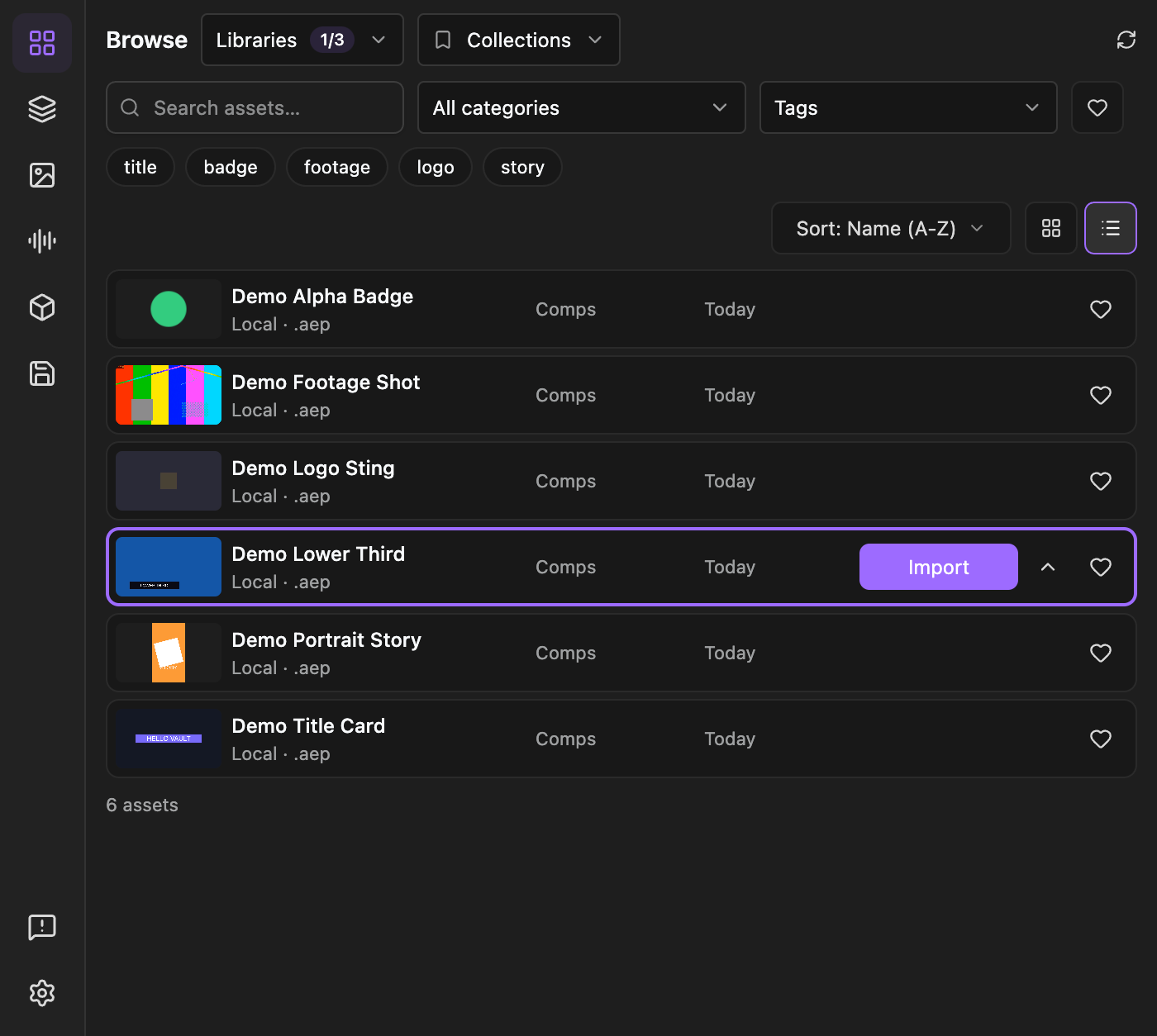
The heart on a card marks a favourite. The heart button in the filters shows only favourites. In Settings → Vault, Show favourites first pins them to the top of the list. Favourites live on your computer, and a Team asset stays a favourite when it is republished.
Collections
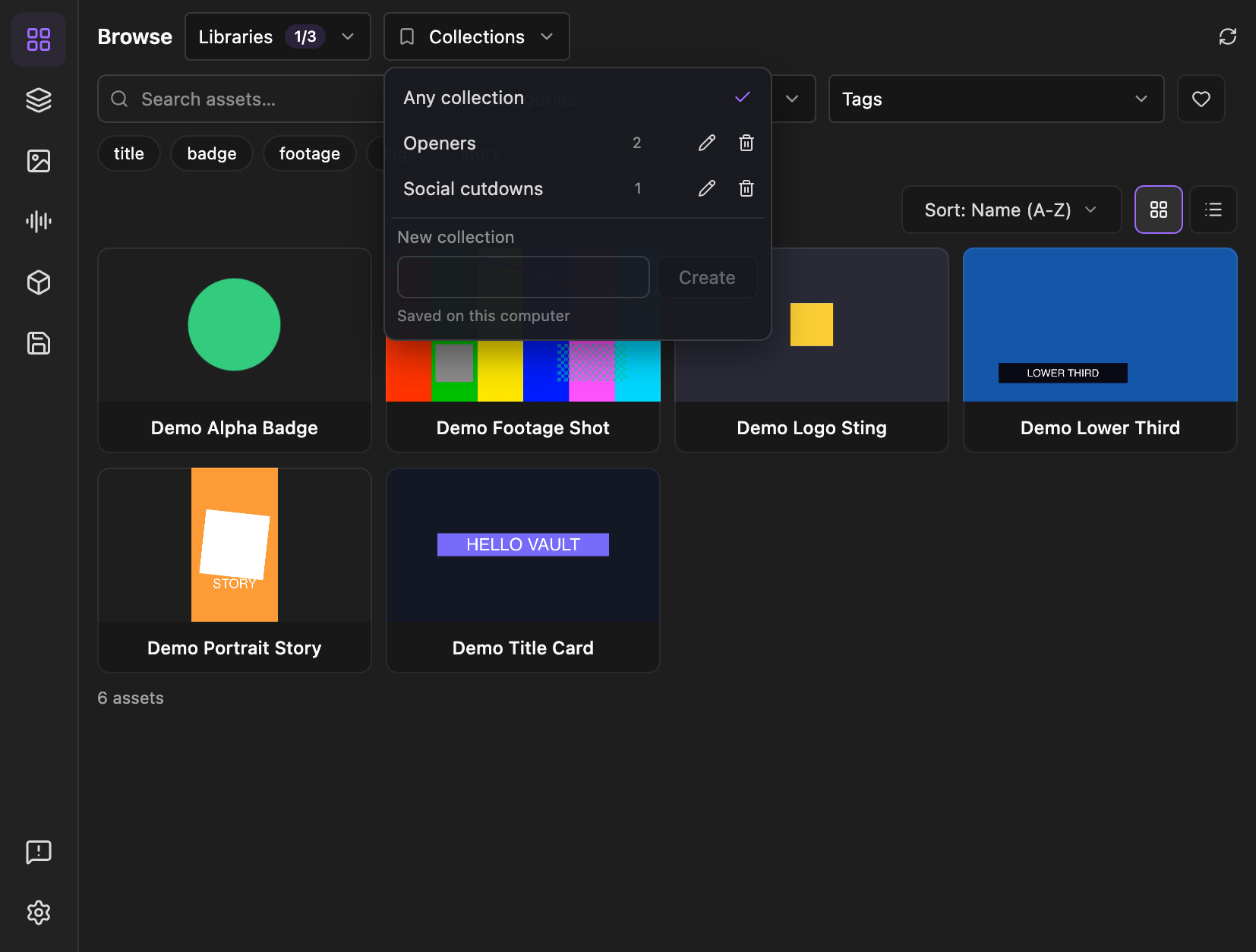
A Collection is a named group of assets for a project or a job. Create one from the Collections menu in the Browse header, then add assets from a card’s menu (select the card, then the arrow beside Import).
- Pick a Collection in the header to see only its assets. Filters and sort still apply inside it.
- Names are up to 60 characters and must be unique.
- Rename or delete a Collection with the pencil and bin icons beside it. Deleting leaves the assets alone.
- Collections are saved on this computer only. They are not shared with a team.
- A Collection can hold assets from several libraries. If you hide a library, the Collection tells you how many of its assets are not showing and offers Show all libraries.
Sorting
The Sort menu next to the view toggle offers:
- Recently added - newest first. This is the default on a fresh install.
- Recently used - what you imported most recently, first. Assets you have never imported appear after it.
- Name (A-Z)
- Length - shortest first. Assets with no recorded length are listed last.
While you are searching, results are ordered by relevance and the sort is paused. Changing the sort or filters scrolls you back to the top.
Grid and list
The two buttons at the right of the results bar switch between grid and list. The list shows a small thumbnail and name, with columns (category, tags and the value for your current sort) that appear as the panel gets wider. Select a row to reveal Import and the menu. The heart is always visible in list view. Switching view keeps your place.